
PLEASE READ BELOW:
Please start up the computer and programs at least half a day before your meeting to ensure things are updated, troubleshooting, and fix any bugs. This will also give you plenty of time to charge the handsets.
The power switch is located at the top of the case near the usb ports (KZ) & on the front of the computer case at the bottom of the chamfer (GR)
Please do NOT touch the power switch on the back of the computer case, this is for the power supply and should only be used when unplugging/moving the computer.
Connecting VR cords:
- Ensure both trackers are plugged in and placed at opposite corners of the usable space
- If using VR in the Kzoo studio ensure they are attached to their wall mounts and pointed towards the open air conference room
- If using VR in the GR studio ensure they are located above the open air conference room
- Plug headset into the Vive Link Box
- Plug the Vive Link Box into the computer (USB & HDMI)
- Plug the Vive Link Box into outlet
- Push the blue button in the Vive Link Box to turn it on
- Turn on handsets
- If these are not on hold the button that looks like 2 pieces of paper stacked until the light blinks
Launching VR – SketchUp/Enscape model
- Turn on computer (do this at least a day before your meeting so you can run any updates/troubleshoot any connection issues)
- Once computer is on and running launch “Steam VR” if it hasn’t already launched.
- Plug in VIVE Link Station and make sure green light turns on, if not push blue button to turn link station on.
- Check that the headset, and Basestations are ready (these will have green lights on them)
- If the headset is not detected be sure that the link box has a green light on top, if not push the blue button to turn link box on.
- To turn on handsets hold the system button (looks like 2 pieces of paper until they beep) if headset is not connected correctly handsets will not connect.
- Open Sketchup and the model you are going to view in VR
- In the Extensions menu select Enscape Start (Or press the Enscape start in the tool bar)
- Within Enscape click the VR Button in the stop right
- Now put the headset on and look and move around the space!
- See below for Recalibrating the Headset Height!
Recalibrating A Room:
- Ensure both trackers are plugged in and placed at opposite corners of the usable space
- If using VR in the Kzoo studio ensure they are attached to their wall mounts and pointed towards the open air conference room
- If using VR in the GR studio ensure they are located above the open air conference room
- Ensure headset is turned on, Vive Link Box should have a green light
- If light is blue, press the blue button to turn it on
- Turn on handsets
- If these are not on hold the button that looks like 2 pieces of paper stacked until the light blinks
- Open the Steam VR application
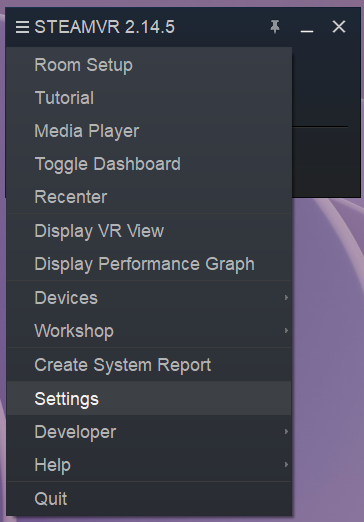
- Select the three lines in the upper left and select “Room Setup”
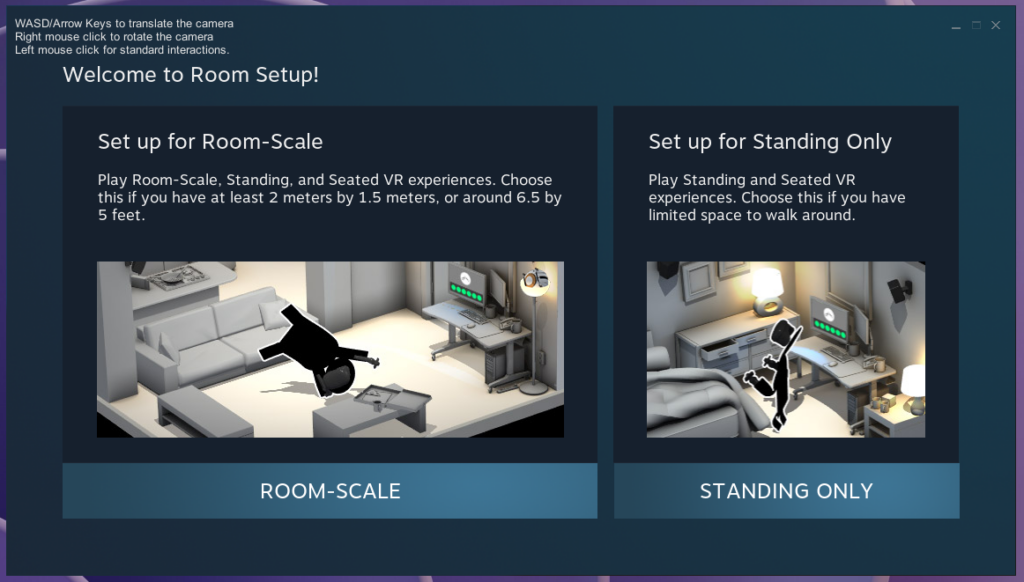
- From here you can choose your setup type
- If working in a large space select “Room Scale”, this allows you to walk around the model
- If working in a small space select “Standing Only”, this allow you to look around the model
- Follow the instructions on the screen
- Locate the Computer Screen
- Locate the Floor
- Locate the Corners of the room
- Define the room boundary
- For this select advanced tracking as it allows you to walk around the space to define the boundary for your VR space
- As an FYI you do not need your headset on for this part!
- You should now be all set and have setup the room!
- Follow the previous steps to enter your project!
Recalibrating VR Headset Height:
- Go to the Steam VR menu and select the three lines in the upper left
- Select “Settings” and a separate Steam VR menu will open
- Select “Developer” from the left side menu and then scroll to “Room & Tracking”
- If you do not see “Developer” on the left tab, select “Show” under advanced settings
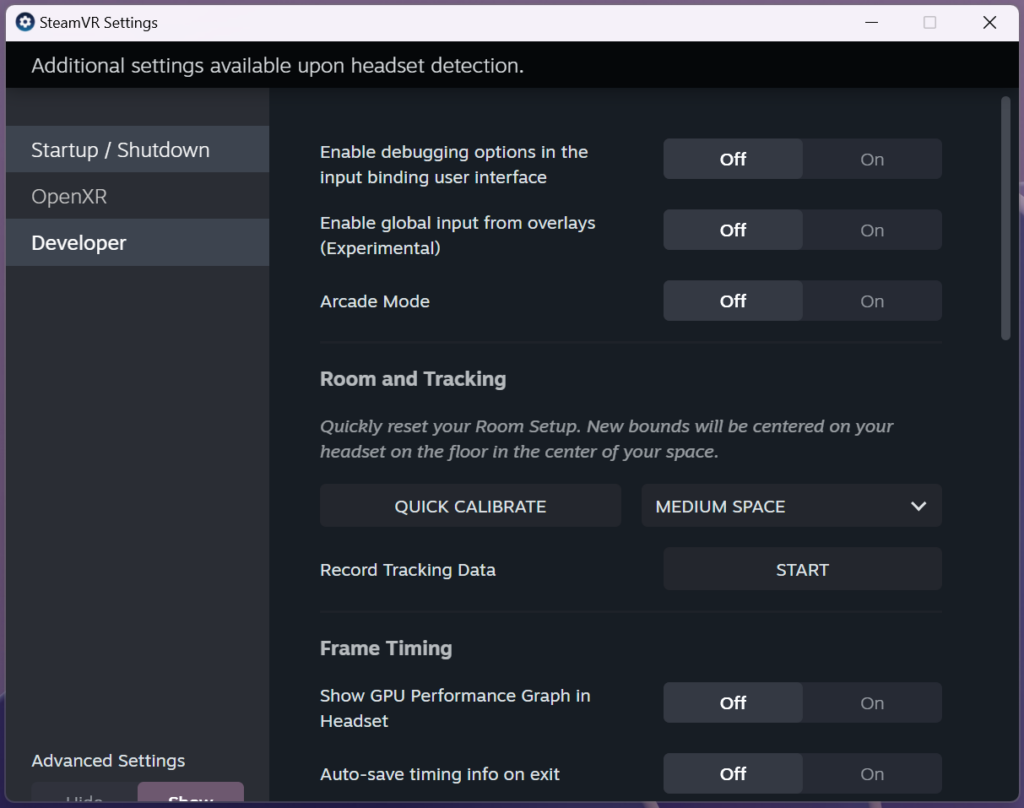
- Place the VR headset on the ground in the middle of the VR space that you are using (the headset should be placed right side up)
- Click “Quick Calibrate” within the larger Steam VR menu
- You should be all set, put the headset on and when you are standing in the VR space your head should be at (or close to) your actual head height.
- FYI you may need to navigate back to your model within the VR space, this is easily done by either selecting a scene in SketchUp or a view within Enscape.