
Try this fix (before reaching out to Verdant) if you cannot connect to ArchiCad license even when connected to wifi/server
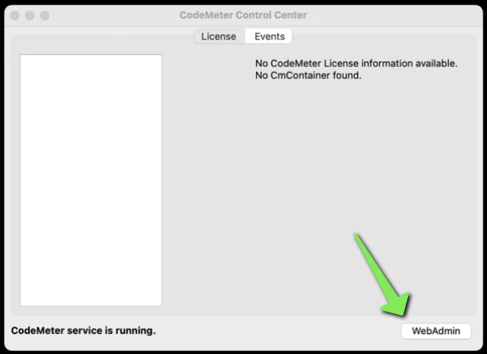
- Open the CodeMeter App
- Press “Cmd” + “Space Bar” to open up the search bar
- Type CodeMeter into that search bar
- Launch the WebAdmin Portal
- Select WebAdmin in the bottom right of the window
- This will take you to a CodeMeter WebAdmin website
- Select WebAdmin in the bottom right of the window
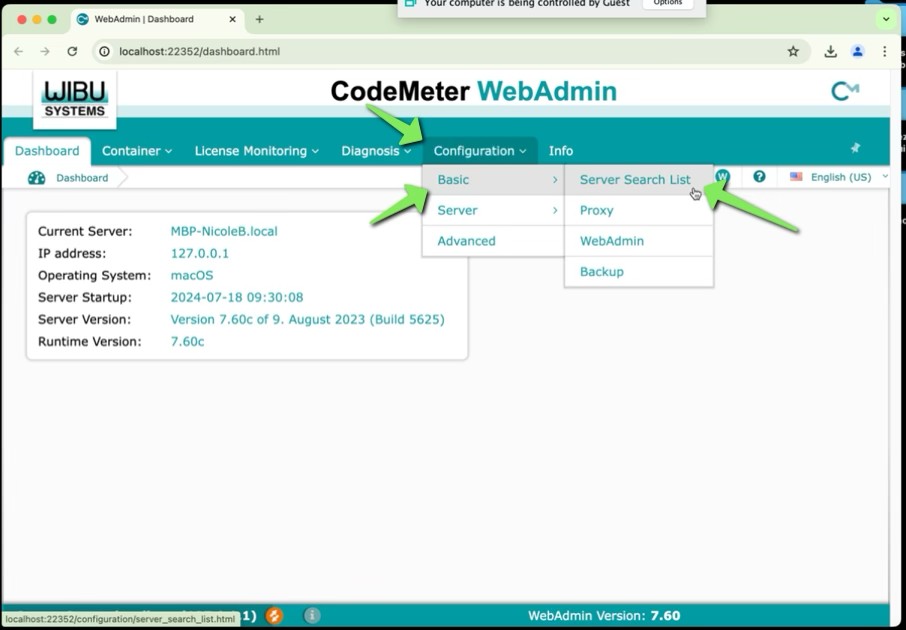
- Within the website navigate to Configuration > Basic > Server Search List
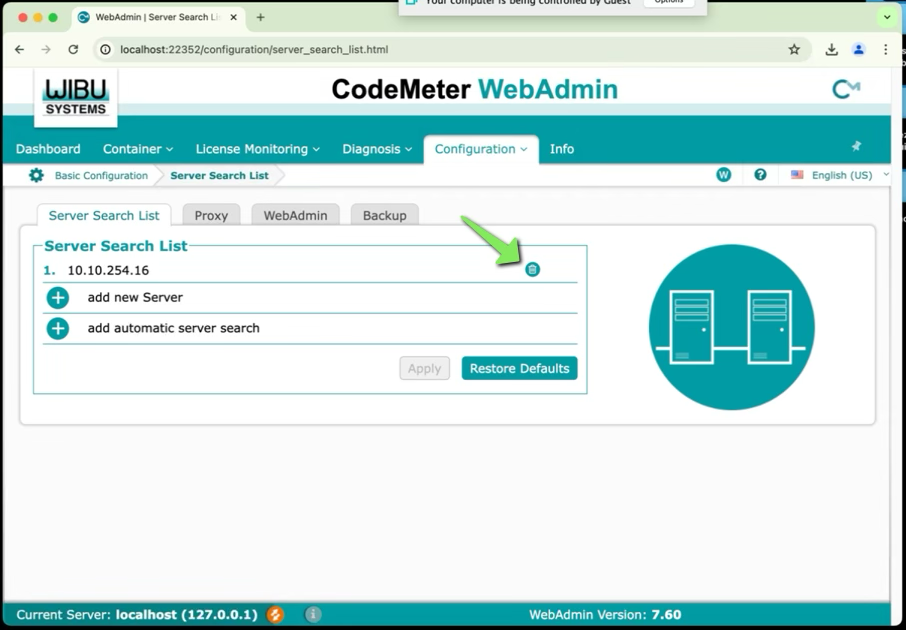
- If there is an existing entry within the “Server Search List”, delete it.
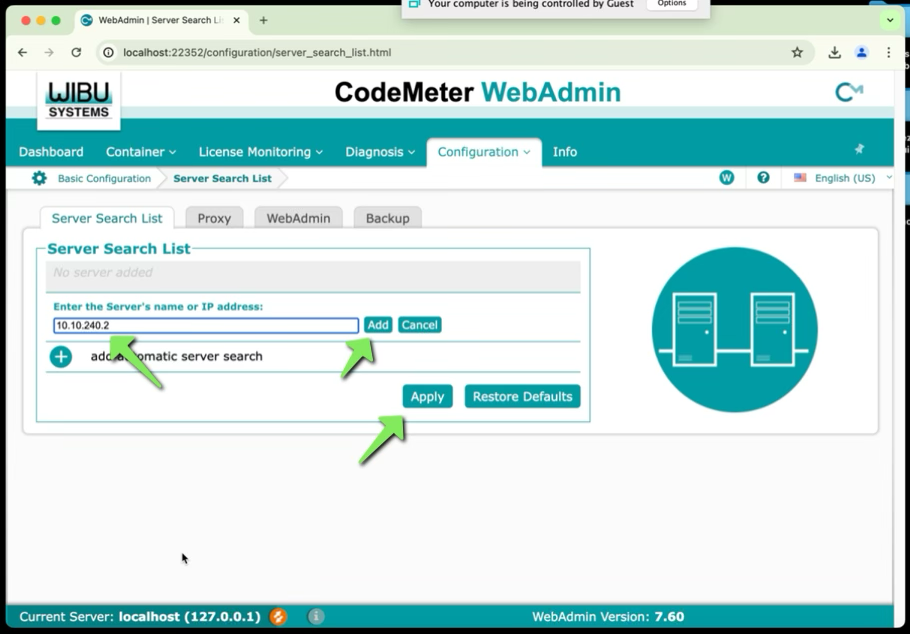
- Click “Add new Server” and type in the IP Address (10.10.240.2)
- After adding the new IP Address click “Add”
- Then click “Apply”
- Now try and access ArchiCad
- Make sure to try and open a project, not just load the project window
- Reach out to Verdant if problems still persist, there might be a different work around!